Windows 7®
The first thing to do is to decompress the package into its constituent files. If you’ve downloaded the .zip package and your computer is running a recent operating system, you should have all the tools you need to do this.
To extract the files from the package, open the folder on your computer where you saved the vBulletin package and right-click on its icon. Choose Extract All... from the pop-up menu.
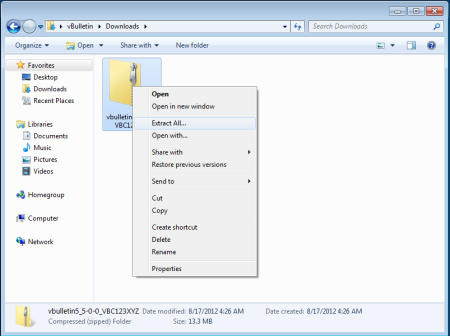
This will open a wizard to guide you through the unzipping progress. Accept the default options and the system will decompress the files from the zip package.
Mac OS X®
The first thing to do is to decompress the package into its constituent files. If you’ve downloaded the .zip package and your computer is running a recent operating system, you should have all the tools you need to do this.
To extract the files from the package, open the folder on your computer where you saved the vBulletin package and right-click (or control-click) on its icon. Choose Open from the pop-up menu.
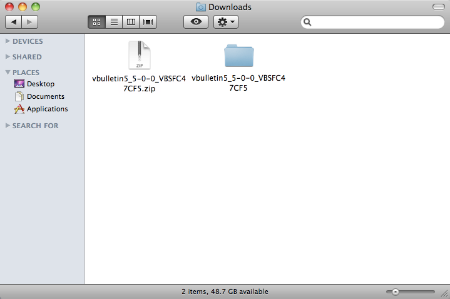
After Decompressing the Files
When the unzipping progress is complete, you will find that the process has created a new folder called upload and another called do_not_upload.
- The upload folder contains the vBulletin files that need to be uploaded to your web server.
Rename the upload folder to match the name you gave to the directory containing your vBulletin files on your web server. In this example, the folder containing the vBulletin files is called forums.Note:If you installed vB5 directly in the root directory of your web publishing folder (not in a subfolder), you do not need to rename the upload folder.Note:If you have changed the names of the admincp and modcp directories in your config.php file, be sure to make the same change to these subdirectories prior to uploading. - The do_not_upload folder contains tools to perform various updating tasks on your board.
- searchindex.php - This file rebuilds the default vBulletin search index.
- vb_backup.sh - This file allows you to run a database backup via SSH/Telnet or a scheduled backup through cron.
- tools.php - This file must be uploaded to the admincp folder and allows you to perform certain tasks should your board go down or you accidentally lock yourself out of the Admin Control Panel.Warning:Because this file presents a SEVERE security risk, it should be deleted immediately after use.
Note:
As you already have a vBulletin installation running on your web server, you should delete the install.php file in the /core/install directory before you proceed to upload the files.
"Note:
As you already have a vBulletin installation running on your web server, you should delete the install.php file in the install directory before you proceed to upload the files."
It is unclear to me whether this refers to the install.php in the current installation or in the upgrade package.
[Editor's Note: It is referring to install.php in the newly downloaded files or upgrade package.]
When vBulletin creates a new table in the upgrade process, it asks MySQL what the default collation for the database is and then uses that. Most MySQL installations default to latin1_swedish_ci (in my case it was utf8_persian_ci). If you have changed collations for any reason on tables in the past then you should change the database to use that as the default to prevent issues in upgrade process.
As per vBulletin:
"Tue 27th Aug '13, 12:23pm
A potential exploit vector has been found in the vBulletin 4.1+ and 5+ installation directories. Our developers are investigating this issue at this time. If deemed necessary we will release the necessary patches. In order to prevent this issue on your vBulletin sites, it is recommended that you delete the install directory for your installation. The directories that should be deleted are:
4.X - /install/
5.X - /core/install
After deleting these directories your sites can not be affected by the issues that we’re currently investigating.
vBulletin 3.X and pre-4.1 would not be affected by these issues. However if you want the best security precautions, you can delete your install directory as well. "