vBulletin allows you to store multiple historical versions of a template. You can use these to compare template changes across versions and to keep track of your edits. The feature lets you quickly and easily see the differences between two versions of the template. This feature is accessed by clicking the
[View History] in the template editor.

When you first enter it will give you a list of all the template revisions stored. Each row will give you the following information:
- Status - This will tell you if the template is the currently active template, a historical revision or the current default.
- Last Modified - When the template was last modified and who edited it.
- Version - The version of vBulletin in which the template was modified.
- View - Simply allows you to view the template by itself.
- Old/New - Allows you to select the template revisions for comparison. Old is showed on the left side of the resulting screen and New is shown on the right.
Each historical revision will also provide a delete checkbox so that you can remove it from the database if you wish.
Once you select two templates to compare, click on the
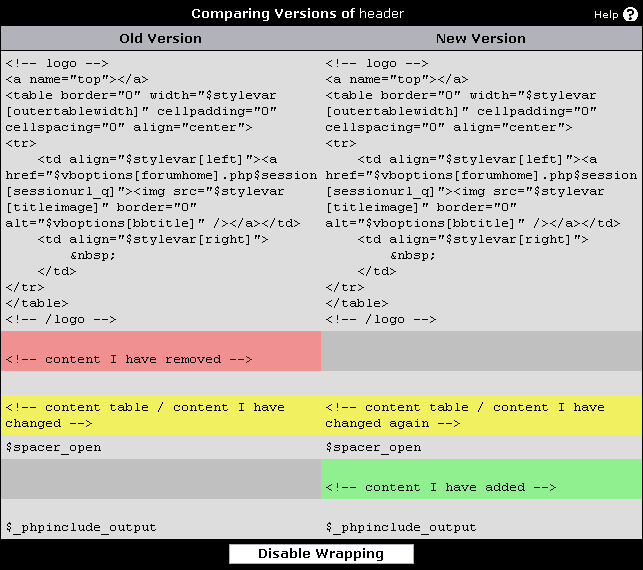
Compare Versions button. The result will be similar to the image below and show where differences between the two versions occur using color highlights and using
View Side-By-Side mode

The default mode is a diff format (or View Inline mode) which will look similar to the image below

Copyright © 2009 vBulletin Solutions. All rights reserved. vBulletin™ is a registered trademark of vBulletin Solutions.