To add a new forum, go to
Forums & Moderators > Add New Forum. You will be presented with this form:
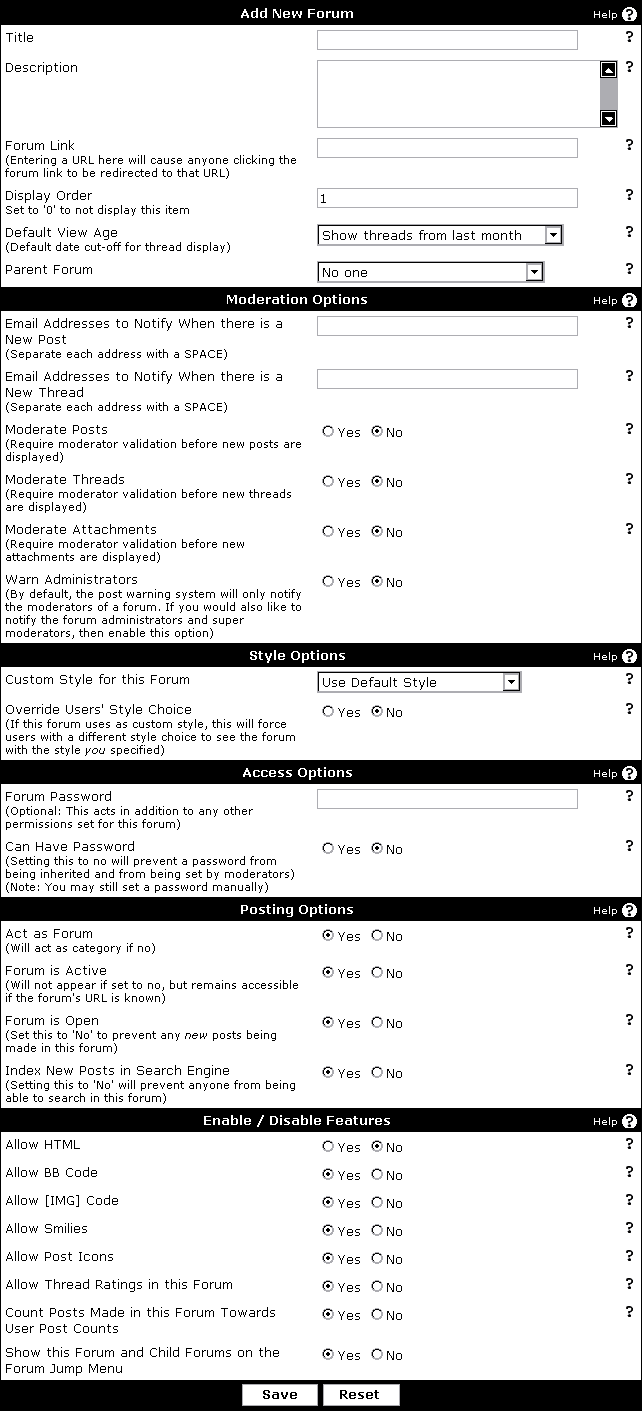
- Title – the title of the forum. This will be displayed on the forum list, in the nav bar, and in the forum jump.
- Description – the description of the forum that will be displayed below the forum title in the forum list.
- Forum Link – if you want this forum to be a link to somewhere else, enter that URL here. Be sure to include https:// at the beginning!
- Display Order – the ordering of the forums within a level. Lower numbers are displayed first and a display order of 0 causes the forum to not be displayed in the forum list. However, it is still accessible if the direct URL is known.
- Default View Age – default amount of time that threads are shown for when a user views the forum. Users may manually override this in their profile or by clicking on the drop down when viewing the forum.
- Parent Forum – the name of this forum’s parent. Use this to group forums into logical groups.
- Email Addresses to Notify When there is a New Post – a list of email addresses to send an email to when a new post is made in this forum; this includes new threads. Separate each with a space. Any email addresses you enter here will also receive emails when a new post is made in a subforum.
- Email Addresses to Notify When there is a New Thread – a list of email addresses to send an email to when a new thread is made in this forum. Separate each with a space. Any email addresses you enter here will also receive emails when a new post is made in a subforum.
- Moderate Posts – requires an admin or moderator to validate posts before they are displayed. This refers only to replies to threads.
- Moderate Threads – requires an admin or moderator to validate new threads before they are displayed.
- Moderate Attachments – requires an admin or moderator to validate attachments before they are displayed.
- Warn Administrators – causes the 'report post' feature to send its messages to administrators in addition to moderators of the forum.
- Custom Style for this Forum – use this to specify a specific style for the forum. If a user has not specified a custom style in his or her profile or cookies, he or she will always see this style.
- Override Users’ Style Choice – if you have specified a custom style for the forum and wish to ensure that all users see this style, regardless of the style set in their profile or cookies, set this to yes.
- Forum Password – if you wish to password protect this forum, specify the password here. Administrators, super moderators, and moderators of the forum in question will not be prompted for a password. Passwords are not automatically applied to child forums; use Apply This Password to Child Forums to emulate this function.
- Apply This Password to Child Forums – if you have changed the password for this forum, setting this to yes will apply the specified password to all child forums. This can be used to emulate inheritance of passwords.
This option is only displayed when editing a forum.
- Can Have Password – this function prevents a forum from inheriting a password with Apply This Password to Child Forums and prevents a moderator from specifying a password in the moderators’ control panel. As an administrator, you may still specify a password for the forum.
- Act as Forum – setting this to no causes the forum to behave as if it were a category. This prevents posting in the forum and changes the template used to display the forum in the forum list.
If this is no, the template used will contain a _nopost suffix, as opposed to a _post suffix.
- Forum is Active – setting this to no prevents the forum from being displayed in the forum list. If a user still knows the forum’s URL, he or she may still access the forum.
- Forum is Open – setting this to no prevents users from posting to the forum. This setting has no effect if Act as Forum is no.
- Index New Posts in Search Engine – setting this to no prevents posts from being indexed for searching. Therefore, posts from this forum will not be found when a search is run.
- Allow HTML – setting this to yes allows users to use arbitrary HTML in their posts. This is NOT recommended except when all users who may post in the forum are trusted.
Setting this to yes in a situation where users may not be trusted may compromise account security! Users may also inadvertently ruin your layout.
- Allow BB Code – this allows users to use default and custom BB codes to add markup and formatting to their posts. This is much preferred over allowing HTML.
- Allow [IMG] Code – if you have enabled BB codes with Allow BB Code, this setting allows you to control whether users may display images inline with their posts. If this is set to no, images will be displayed as links.
- Allow Smilies – if this is set to yes, when a user types a smilie, such as :), it will be automatically translated into an image.
- Allow Post Icons – if this is set to yes, users may specify an icon to go with their post. In new threads, this icon will be displayed on the thread list; in posts, it will be displayed at the top of the post, next to the title.
- Allow Thread Ratings in this Forum – this setting allows users to rate threads from a scale of one (worst) to five (best).
- Count Posts Made in this Forum Towards User Post Counts – allows you to control whether new posts in this forum increase a users post counts. For example, if you have a testing forum, you may not want users’ posts there to increase their post count.
- Show this Forum and Child Forums on the Forum Jump Menu – this setting allows you to prevent a specific forum (and child forums) from being displayed on the forum jump. This allows you to remove clutter and rarely accessed forums from the forum jump.